Office 365 Migration to PST Guide
Office 365 migration to PST is the process of exporting mailbox data, such as emails, attachments, calendars, contacts, and mailbox folders, from Microsoft 365 into PST files that Outlook can open directly. Organizations use this export when they need offline access to mailbox data, want to keep an archive outside the live tenant, or need to prepare mailbox data for a compliance review or a future migration. This is different from a backup or archive product: a PST export is a one-time or scheduled copy of the selected data into a standalone file, not an ongoing, automated backup service.
Exporting an Office 365 mailbox to a PST (Personal Storage Table) file is useful for several reasons. It helps create local backups, archive cloud data, and migrate data to other email platforms.
Even though Microsoft's native solution offers the eDiscovery tool for PST export, it frequently encounters errors such as ‘Request failed with status code 500’. Users often face issues like missing items, corrupted PST files, lengthy export times, and problematic searches. There is also a common misunderstanding that PowerShell commands can be used to download Office 365 emails, contacts, and calendars to Outlook PST files. Unfortunately, these problems do not have a quick fix. EdbMails Office 365 migration software provides a reliable alternative. It exports Office 365 mailboxes to PST files without those issues.
What is Office 365 Migration to PST?
PST (Personal Storage Table) is the file format Outlook uses to store mailbox data locally. Office 365 migration to PST exports mailbox items from a Microsoft 365 tenant into one or more PST files, instead of moving them to another live mailbox or server.
With EdbMails Office 365 migration software, administrators choose which mailboxes to export, and within each mailbox, which folders and items are included. The export scope is controlled by mailbox selection, folder selection, and filters, so the resulting PST files contain only the data that was actually selected, not the entire tenant by default.
Why Organizations Export Office 365 Mailboxes to PST
- Maintains the secure local backup of Office 365 mailbox data to ensure recovery in case of data loss or system issues.
- Supports legal, audit, and compliance by keeping the mailbox data
- Keeps essential data when migrating the mailboxes of users who have left the organization
- It allows offline access to emails, calendars, and contacts without depending on an active Office 365 account
- It also helps to manage the mailbox size by storing the older data in the PST files for the long term.
- Makes migration easy by allowing the Office 365mailbox data to be migrated into different platforms
Common Scenarios for Office 365 to PST Migration
Beyond the general reasons above, a few specific situations come up often when teams export Office 365 mailboxes to PST:
- Employee offboarding: when an employee leaves, their mailbox data can be exported and retained before the Office 365 account is removed.
- Compliance and legal review: mailbox data can be exported and stored separately so it is available for review or to meet a retention requirement.
- Offline access: exported PST files let users open mailbox data in Outlook without an active connection to Microsoft 365.
- Migration preparation: selected mailbox data can be exported to PST before it is moved into another environment.
Prerequisites to Export Office 365 Mailbox to PST
- Microsoft Outlook with a profile should be installed on the computer on which the export process will be performed.
- There should be enough space on the computer drive to store the output PST file.
How to Export Office 365 Mailboxes to PST Using EdbMails
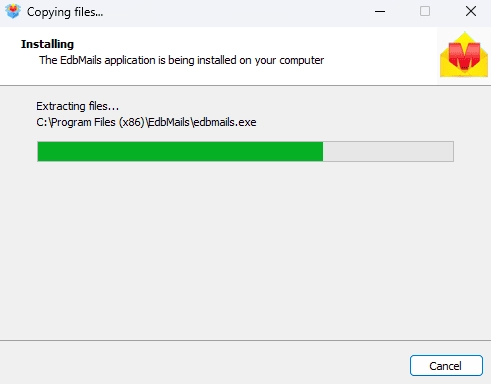
- Step 1: Install and download EdbMails Software
- Download and install the EdbMails tool on your computer.
- Open the EdbMails setup wizard and double-click on EdbMailsSetup.exe for the installation of the tool.
- Continue following the instructions in the installation setup to install the software.
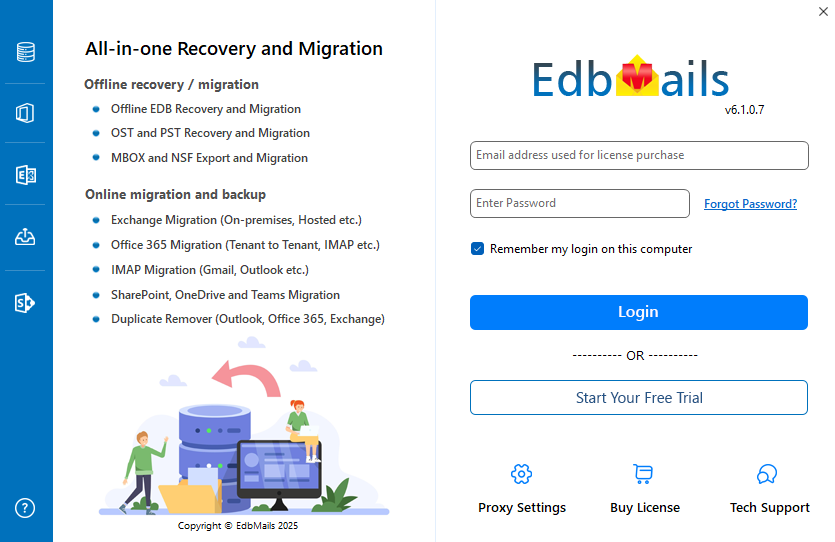
- Click 'Login' or 'Start Your Free Trial' to start using the application.
- Step 2: Choose the Office 365 to PST Export option
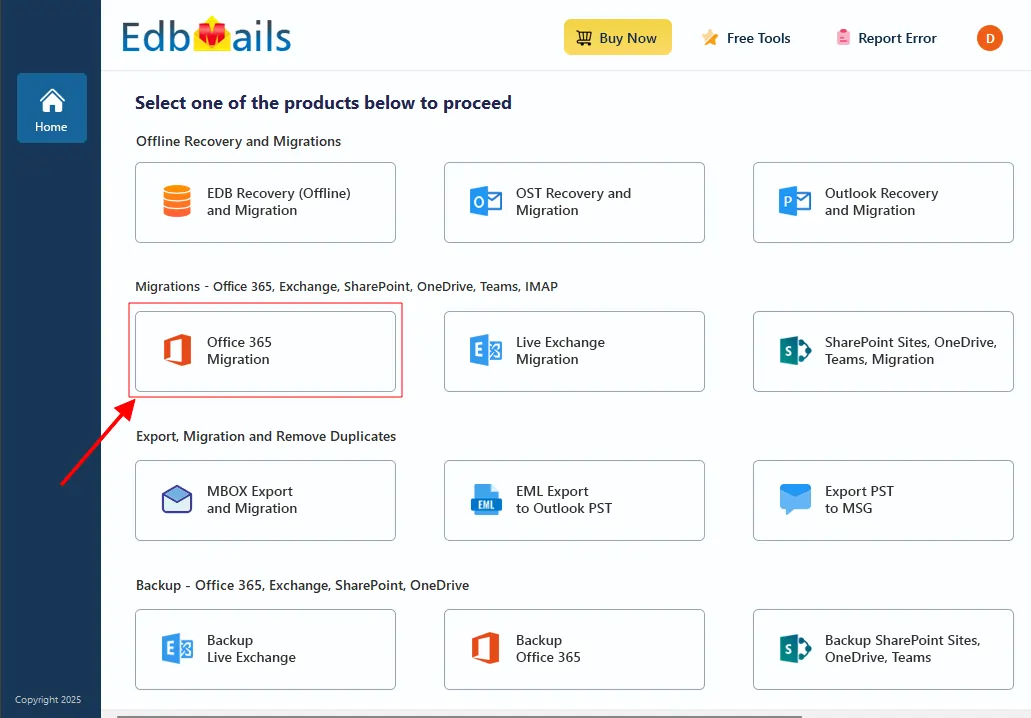
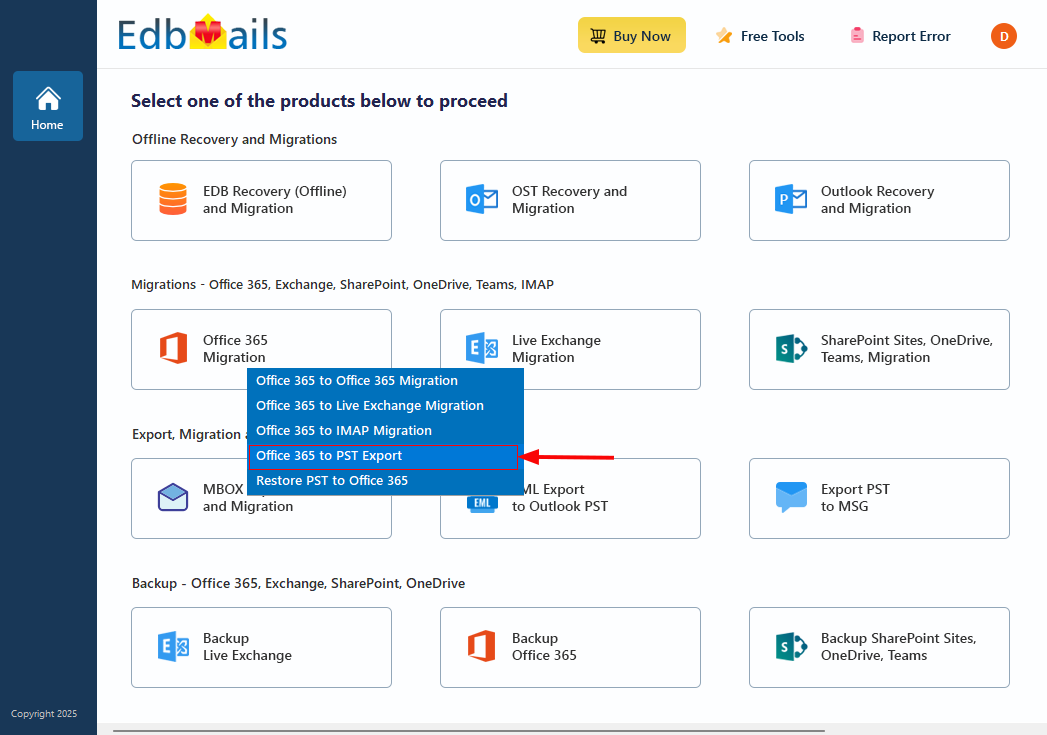
- Choose the option 'Office 365 Migration'
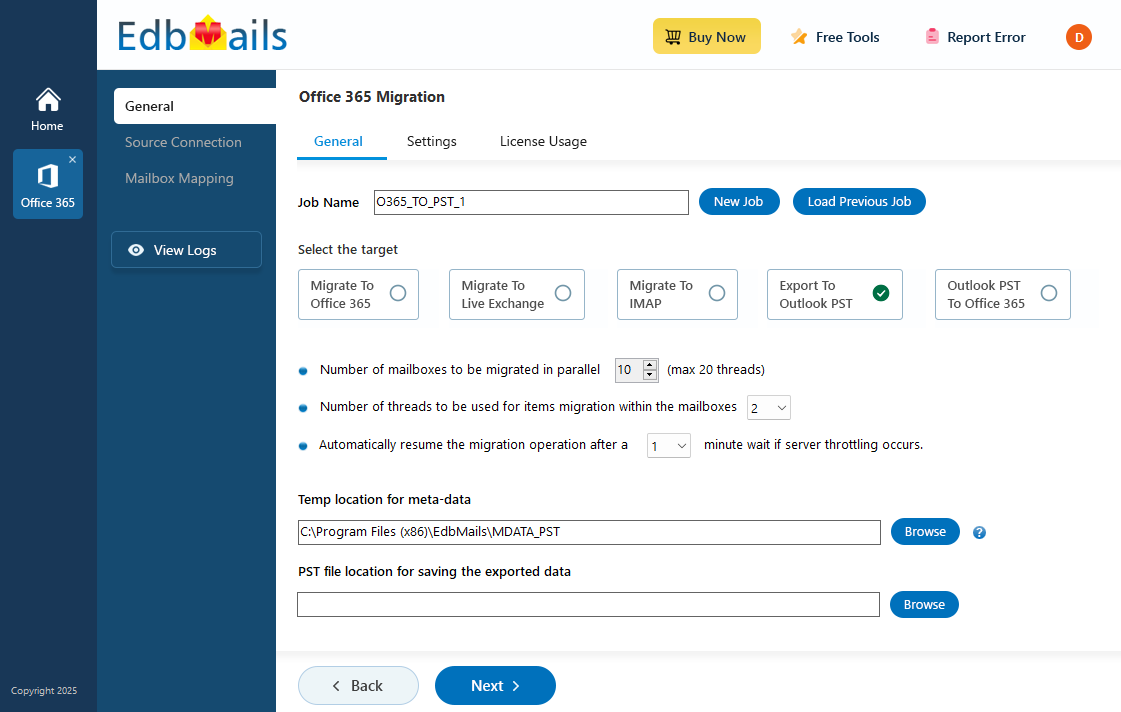
- Choose ‘Office 365 to PST Export’
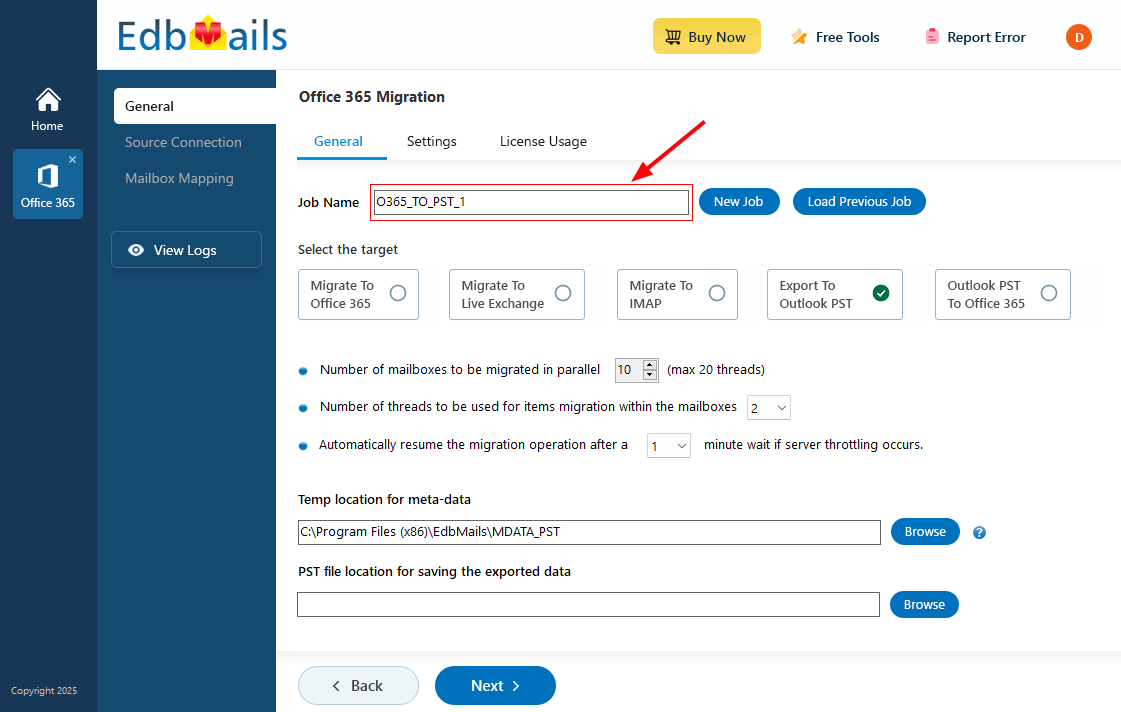
- Use the default job name or click the 'New Job' button and give any required name.
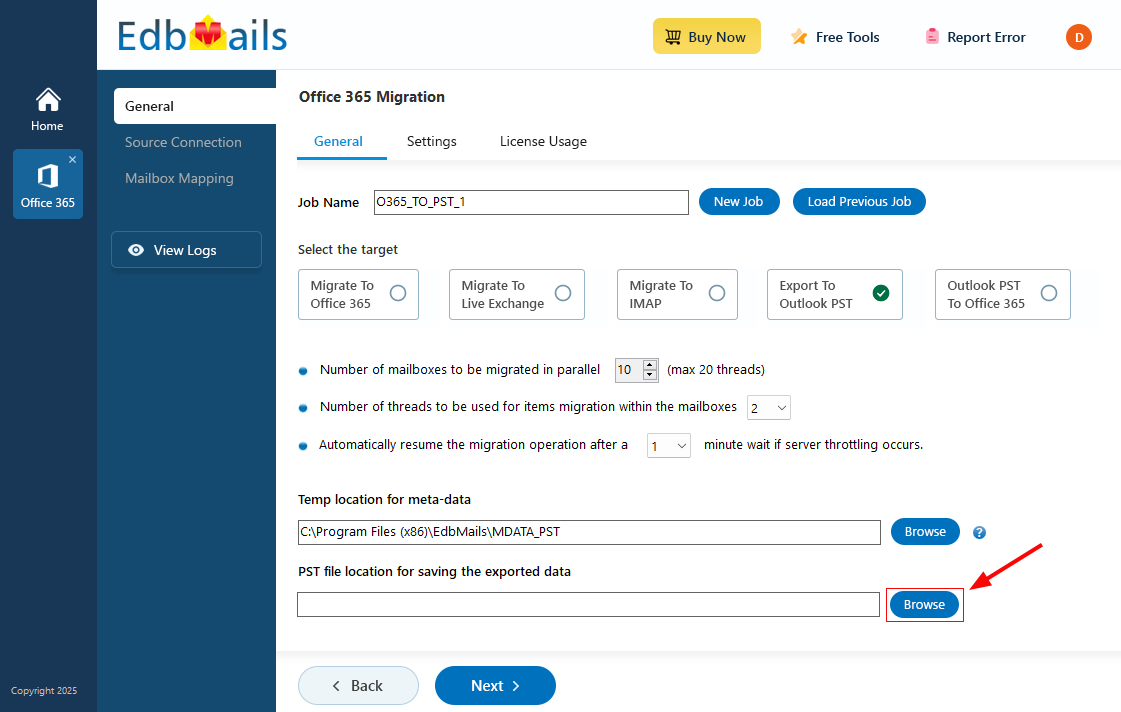
- Click ‘Browse’.
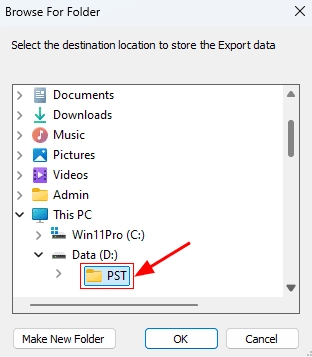
- Select where to save PST files and make sure that the disk has sufficient free space.
- Choose the option 'Office 365 Migration'
- Step 3: Connect to the source Office 365 server
- Click ‘Add New Connection’ to establish new connection for source Office 365 server. To add the prior connection, select your connection from the connection list and then click the Connect to Existing button.
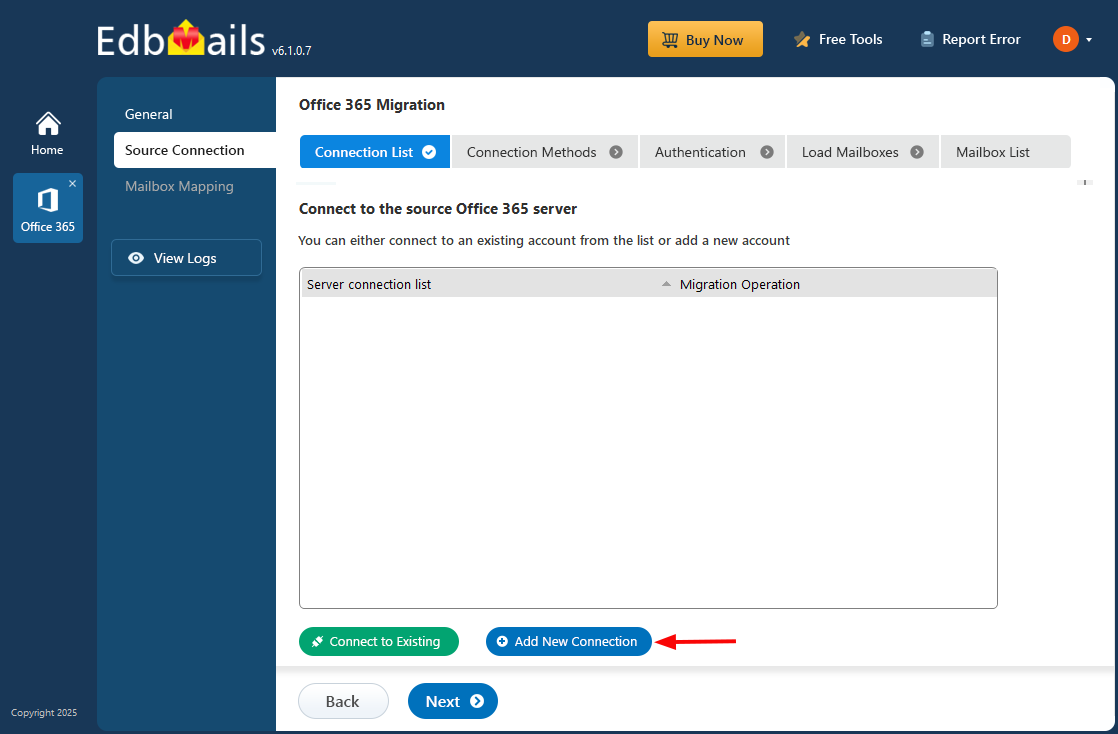
- Select your connection details and click the ‘Next’ button.
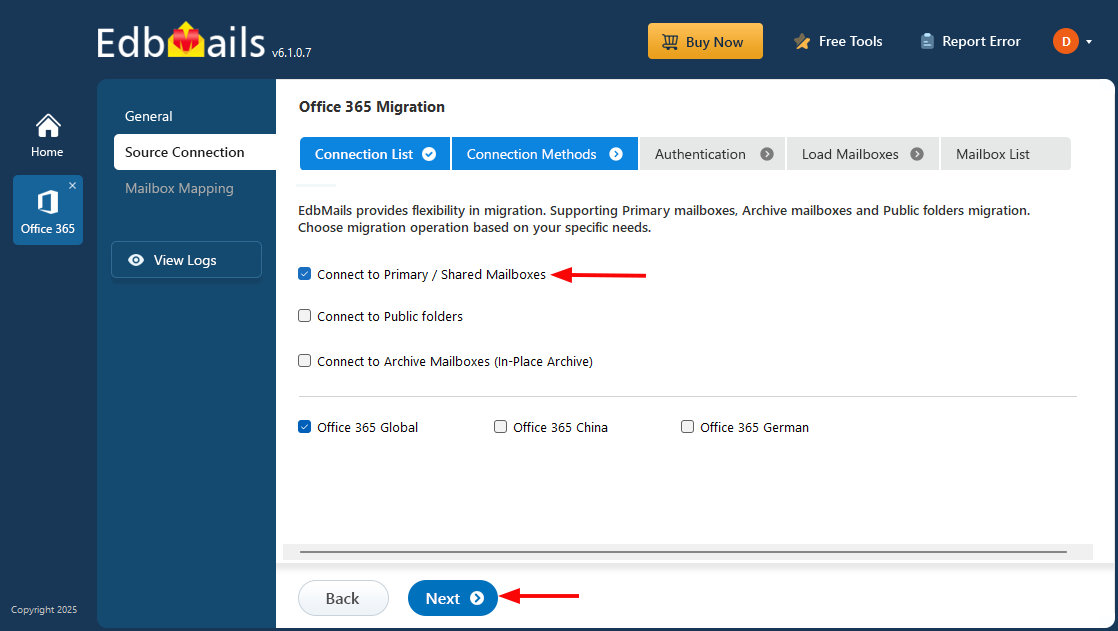
- Select your connection method and click the ‘Login’ button.
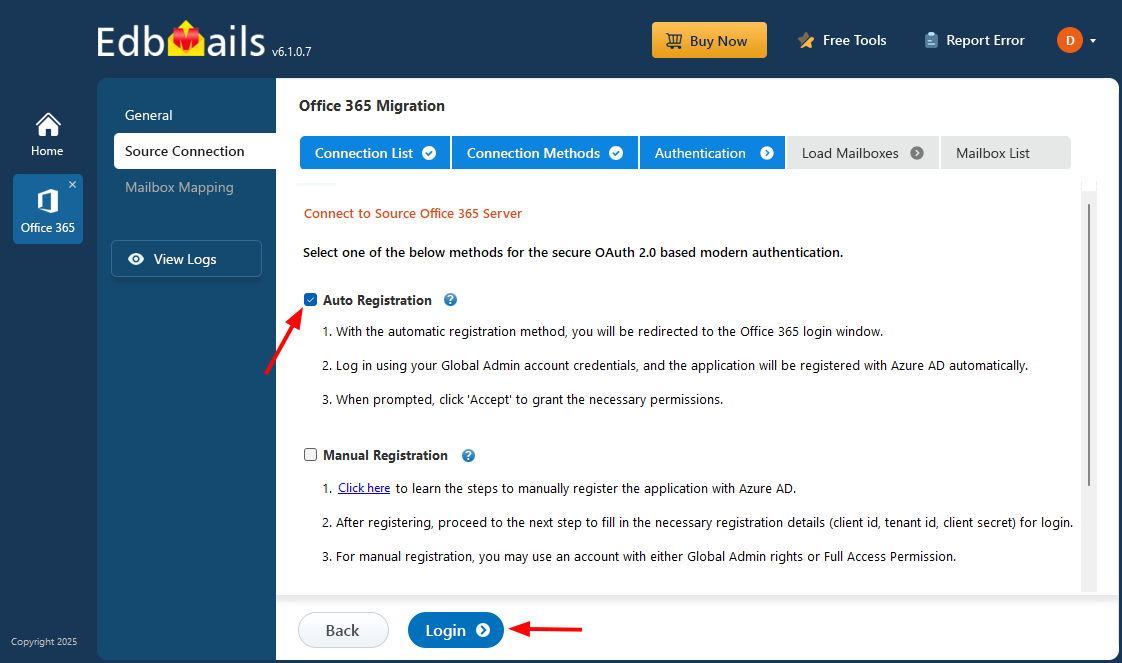
Connect to Office 365 server using secure modern authentication
- Login at the Microsoft sign-in page.
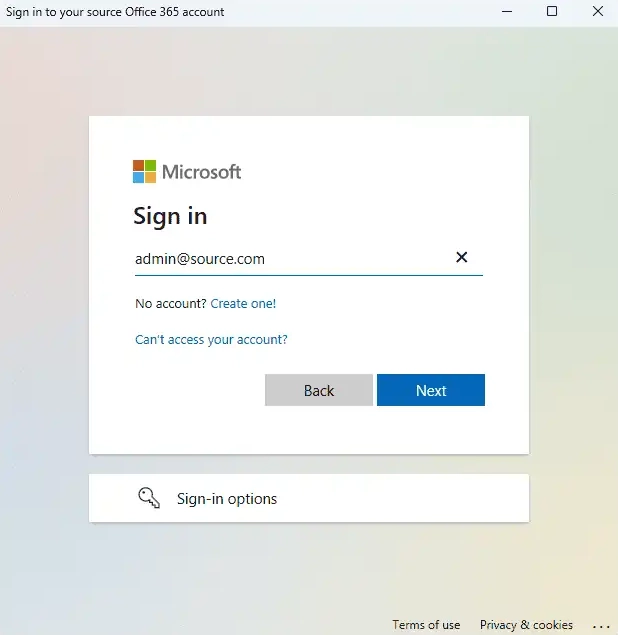
Choose your option to load mailboxes after the sign-in is done, or you can load and migrate mailboxes by importing a CSV file.
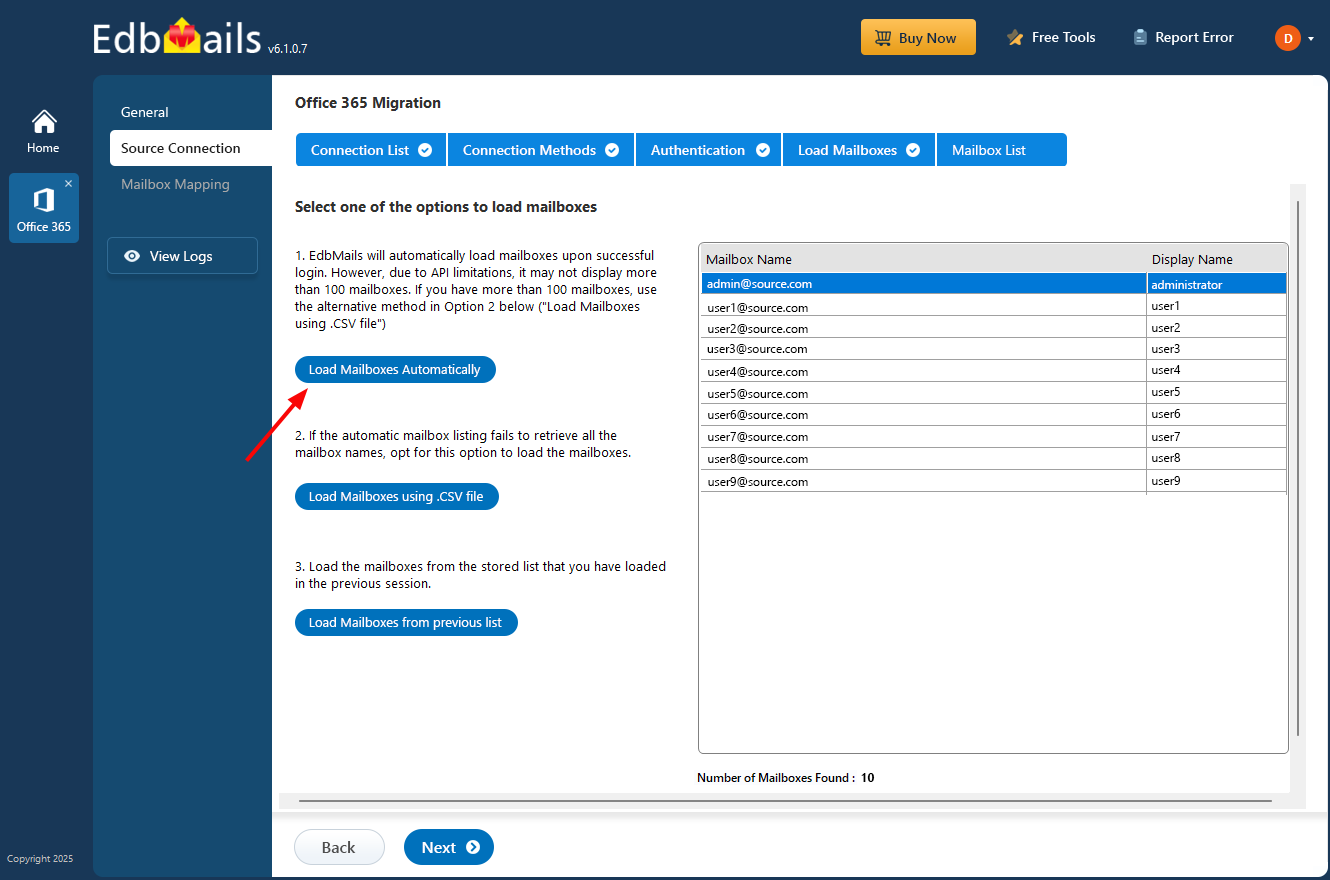
- Click ‘Add New Connection’ to establish new connection for source Office 365 server. To add the prior connection, select your connection from the connection list and then click the Connect to Existing button.
- Step 4: Choose Office 365 Mailboxes
- Now select the mailboxes or folders you would like to export from your source Office 365 server and then click ‘Next’.
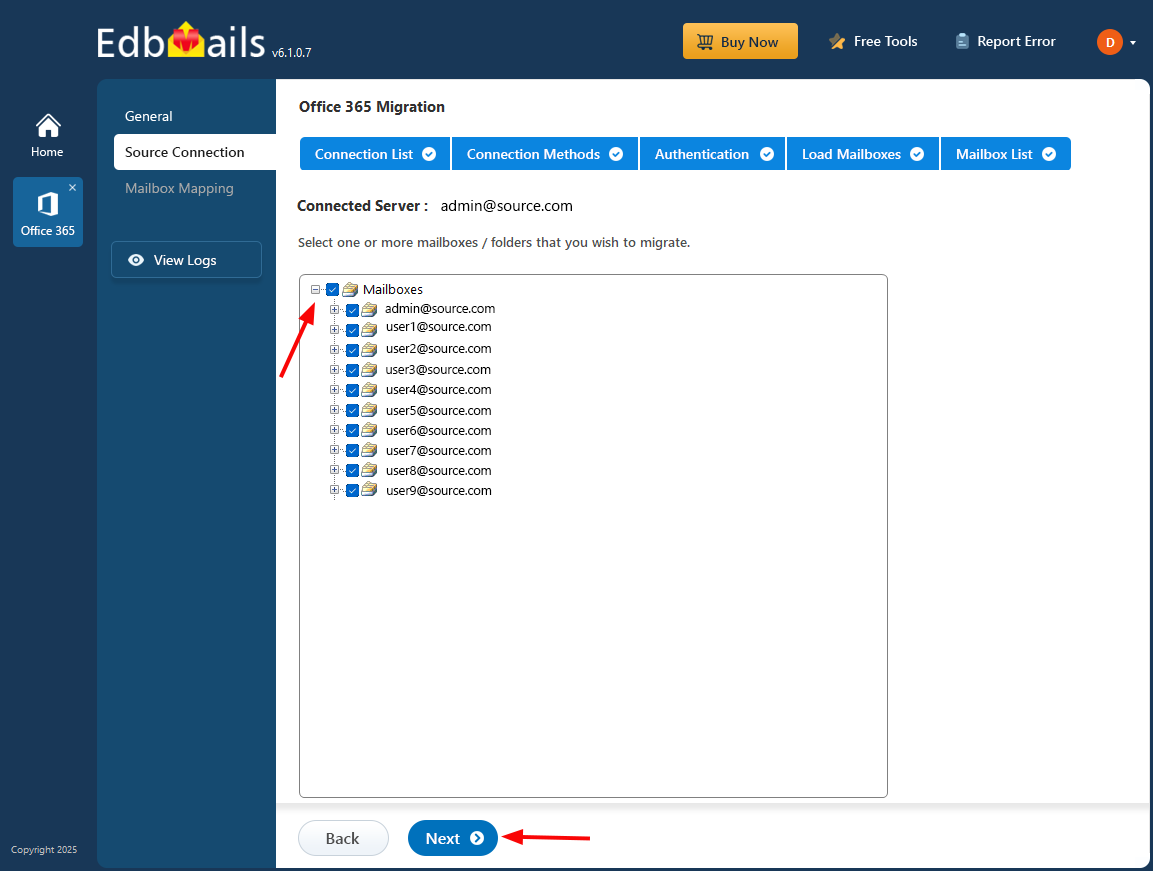
- In EdbMails, you have the option of applying filters to the export operation, such as date range, folder selection, and mailbox selection. See Filter Office 365 Mailbox Data Before PST Export below, or the full option list on Advanced Filter Settings for Office 365 Migration.
- Now select the mailboxes or folders you would like to export from your source Office 365 server and then click ‘Next’.
- Step 5: Start the export operation
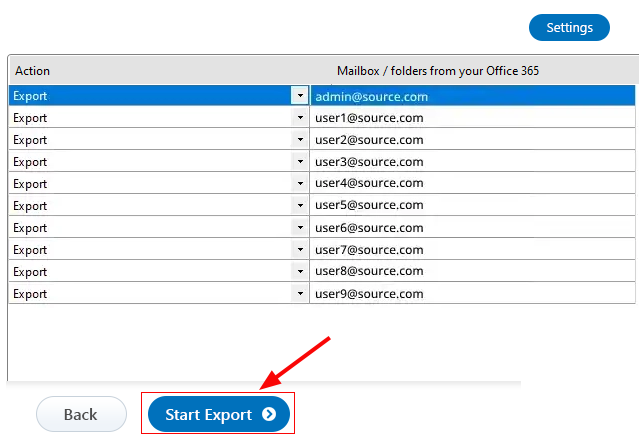
- Double-check the mailboxes that you chose for export and select the ‘Action’ as ‘Export’, then click ‘Start Export’.
The export operation starts as shown below. Upon completion of the operation, a confirmation message is displayed. EdbMails generates an export report as well, and you can view it by clicking on the ‘View Log' button at the left-side bottom of the export window.
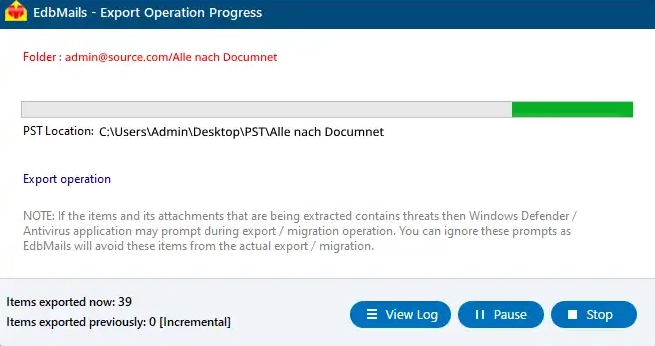
- Once export is completed, open up your PST file in Outlook, and then you will see emails, calendar, contacts, etc. See Validate Exported PST Files below for a fuller check.
- Double-check the mailboxes that you chose for export and select the ‘Action’ as ‘Export’, then click ‘Start Export’.
- Step 1: Install and download EdbMails Software
Key Features of EdbMails for Office 365 to PST Export
EdbMails provides a simple and efficient way to export Office 365 mailboxes to PST with advanced options for managing large and selective exports. Key features include:
- Incremental Export: Exports only new or updated mailbox data during subsequent exports, helping save time and reduce unnecessary storage usage.
- Advanced Filtering: Select specific date ranges, folders, and other available filters to export only the required mailbox data.
- Split PST: Splits large mailbox exports into smaller PST files, making them easier to manage and helping avoid issues associated with oversized PST files.
- Multiple Mailbox Export: Export data from multiple Office 365 mailboxes to PST, making it suitable for organizational and bulk export requirements.
- Preserve Folder Structure: Maintains the original mailbox folder hierarchy in the exported PST for easier access and organization.
- Export Reports: Provides detailed reports to help review the export status and identify any items that may require attention.
With these capabilities, EdbMails can help organizations manage Office 365 mailbox backup, archiving, compliance, and PST export requirements while keeping the exported data organized and manageable.
Selective Office 365 Mailbox Export to PST
Administrators can select the required mailboxes instead of exporting the complete Microsoft 365 environment. This is useful when only specific users or specific mailbox data need to be exported, for example a single department or the mailboxes named in a legal hold request.
Selection works at both levels. At the mailbox level, only the mailboxes checked during setup are included in the export. Within a selected mailbox, individual folders can also be chosen, so the export can be limited to specific folders such as Inbox and Sent Items instead of the whole mailbox, avoiding unnecessary data in the exported PST.
Filter Office 365 Mailbox Data Before PST Export
Mailbox and folder selection decide which mailboxes and folders are exported. Filters narrow the items within that scope further. EdbMails provides include and exclude filters for the export operation, covering:
- Date range: export items received after a date, before a date, or between two dates, for example only the last 12 months of mail.
- Folder selection: limit the export to specific folders or folder types, such as emails, contacts, or calendars, in addition to the mailbox and folder choices made during setup.
- Mailbox selection: apply the same filter settings across the mailboxes chosen for the export job, so each mailbox in the batch follows the same scope.
Office 365 Archive Mailbox Export to PST
Archive mailbox data may also need to be exported to PST, separately from the primary mailbox, for retention or archive purposes. Archive content can be handled on its own depending on requirements, for example exporting only the archive mailbox for a user whose primary mailbox does not need to be exported. For migrating archive mailbox data to another Exchange environment rather than exporting it, see the Office 365 archive mailbox to Exchange guide.
Office 365 Export Methods Comparison
There is more than one way to export Office 365 mailbox data to PST. The table below outlines what each approach is generally suited for.
| Method | Suitable For | Considerations |
|---|---|---|
| Microsoft native methods | Basic export requirements, one mailbox at a time | Requires manual configuration in the Microsoft 365 admin center or eDiscovery tool, and may require administrator familiarity with those tools |
| PowerShell scripts | Administrators comfortable with scripting | Requires command and script knowledge, and involves more manual steps to handle multiple mailboxes or filtering |
| EdbMails | Controlled, repeatable mailbox export across single or multiple mailboxes | Provides mailbox selection, folder selection, filtering options, and export reports within one interface |
Validate Exported PST Files
After the export finishes, open the resulting PST file in Microsoft Outlook and check that the expected folders, emails, attachments, calendar items, and contacts are present. EdbMails also generates an export report for the job, viewable from the View Log button in the export window, which lists the exported item counts and any items that need attention.
Frequently Asked Questions
Can I export multiple Office 365 mailboxes to PST at once?
Can I export only specific emails or folders from an Office 365 mailbox to PST?
Can I split a large Office 365 mailbox export into multiple PST files?
How can I verify the exported Office 365 data in the PST file??